"Perfect tool for archiving my AI conversations! I can easily save important chat sessions with Gemini AI and reference them later in Word format."
AS
Alex S.
Software Developer
One-click export from Google's Gemini chats to polished Word files. Perfect for students, creators, and teams who need tidy notes, citations, and ready-to-edit drafts.
Recommended by Google • Over 50 positive reviews
Join thousands of users who are already exporting their Gemini conversations to Word. Install the extension now and get all the benefits!
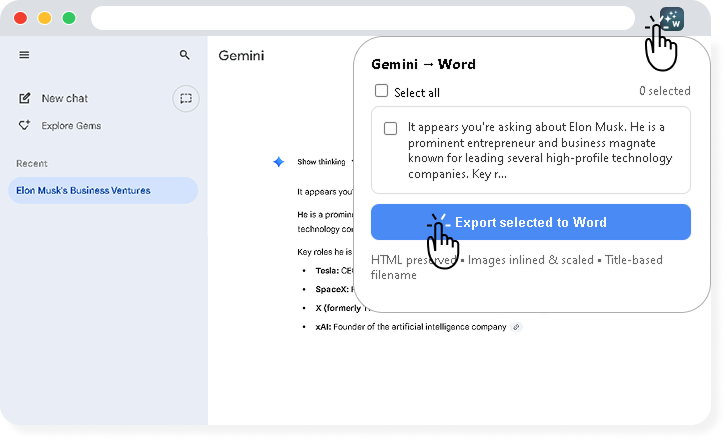
Install ExtensionChoose which messages to include in your Word document. Export entire conversations or select only the most important parts of your Gemini chat.
Get beautifully formatted Word documents with proper markdown rendering, code highlighting, and clear distinction between user and AI messages.
Customize your Word output with various styling options. Choose formatting presets: Lecture, Research, Article, and Script templates.
Export entire conversation histories as separate documents. Save time by processing multiple chats at once.
Automatically preserves images, links, and citations in your exported Word documents. Everything stays intact.
All processing happens locally in your browser. The extension doesn't store or transmit any of your chat data to external servers.
Get it free from Chrome Web Store in one click
Open gemini.google.com and start your conversation
Select specific messages or export entire chat history
Customize format and download your .docx instantly
"Perfect tool for archiving my AI conversations! I can easily save important chat sessions with Gemini AI and reference them later in Word format."
"Being able to export my Gemini chat sessions into well-formatted Word documents has been invaluable for documenting my research discussions with AI."
"Love how I can select specific messages to include in the Word document. Makes it super easy to create clean documentation from my Gemini conversations."
After installation, you'll see an "Export to Word" button in the top-right corner of your Gemini Chat interface. Click it to select messages and customize your export settings.
Yes, the extension preserves all formatting, including syntax highlighting for code blocks, markdown rendering, and proper spacing between messages.
Absolutely! You can choose from formatting presets (Lecture, Research, Article, Script), select which messages to include, and customize styling options.
Yes, all processing happens locally in your browser. The extension doesn't store or transmit any of your chat data to external servers.
.docx is the primary format. We also support .md and .pdf via the extension UI.